Affiliate Disclosure: As an Amazon Associate, we earn from qualifying purchases.
Tip: Check the latest price, product details, and current availability on Amazon or the retailer page before making a final decision.
If you have a modern laptop with only one or two USB C ports, you have likely already felt the squeeze. You want to connect an external monitor, charge your phone, plug in a mouse and keyboard, and maybe read an SD card, all at the same time. A USB C hub solves that problem, but the market is full of similar looking adapters with very different capabilities.
This guide is for anyone shopping for the best USB C hubs in September 2026. It explains the practical differences that matter most, such as video output, power delivery, and data transfer speeds, so you can choose the right hub for your specific setup.

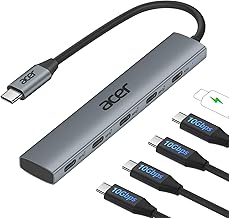


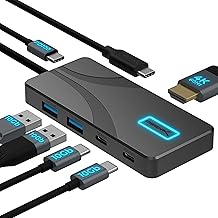
Not all USB C hubs are created equal. The right one depends on your laptop, your monitor, and how you plan to use the extra ports. Here are the key factors to consider before making a purchase.
Video Output and Resolution
If you want to connect an external monitor, check the HDMI version and the maximum resolution supported. A hub with HDMI 2.0 can typically handle 4K at 60Hz, which is ideal for crisp text and smooth video. Some hubs only support a single display, while others may support multiple, but that depends on the specific model and your laptop’s capabilities.
Consider what you will actually use the monitor for. If you are a programmer or writer, a 4K display at 60Hz is a significant upgrade. If you only need to mirror your screen for presentations, a lower resolution might be fine. Always verify that the hub’s video output matches your monitor’s input.
Power Delivery (PD) for Charging
Power Delivery (PD) allows the hub to pass through power to your laptop, so you only need one cable connected to your computer. Look for a hub with at least 85W or 100W PD if you have a larger laptop, as it needs more power to charge while in use. A lower wattage, like 60W, might not keep up with a power hungry machine.
Pay attention to whether the hub is powered or bus powered. A powered hub comes with its own power adapter, which is necessary for high power delivery and stable connections with power hungry devices. A bus powered hub draws power from your laptop, which is fine for small peripherals but may not charge your laptop or support high power devices.
Data Transfer Speeds
Data transfer speed determines how quickly you can move files between your laptop and external drives. USB 3.0 offers up to 5Gbps, while USB 3.2 Gen 2 can reach 10Gbps. If you work with large video files or high resolution photos, a faster hub will save you time.
Check the specifications for each port type. Some hubs have a mix of USB A and USB C data ports, and the speeds may vary between them. Look for hubs that clearly state the data rate for each port, so you know what to expect.
Port Selection and Layout
Think about which devices you need to connect. Do you need an SD card reader for your camera? Do you have multiple USB A peripherals like a mouse and keyboard? Do you need an Ethernet port for a stable wired internet connection? Make a list of your essential devices and choose a hub that has the right mix of ports.
Also consider the physical layout. Some hubs have a short cable, while others are designed to sit flush against your laptop. If you have limited desk space, a compact hub with a short cable might be more convenient. If you move around a lot, a hub with a detachable cable could be more durable.
Compatibility with Your Devices
Most USB C hubs are designed to work with a wide range of laptops, including MacBooks, Windows PCs, and Chromebooks. However, not all hubs are fully compatible with every operating system. Some features, like video output or power delivery, may work differently depending on the device.
Check the hub’s compatibility list before you buy, especially if you have a specific laptop model. Some hubs are optimized for MacBooks, while others are more universal. If you use a tablet like an iPad Pro, make sure the hub supports that device and any specific features you need.
Build Quality and Portability
A USB C hub is a physical object that you will likely carry with your laptop. Look for a hub with a sturdy aluminum or plastic casing that can withstand daily use. A braided cable is more durable than a standard one, and a compact design is easier to slip into a bag.
Consider the weight and size, especially if you travel frequently. A small, lightweight hub is easier to pack, but it might have fewer ports. A larger hub with more ports might be heavier but more versatile. Find the balance that works for your needs.
Why You Should Trust Us
We compare the available specifications, features, use cases, and documented buyer feedback to identify meaningful differences between products. Our goal is to help you understand what each hub offers and which type of buyer it suits best. We do not claim to have physically tested every product, but we rely on the information provided by the manufacturer and the experiences shared by other users.
We focus on practical factors like port selection, power delivery, and data speeds, because these are the details that actually affect your daily workflow. By breaking down the trade-offs, we aim to make your buying decision easier and more informed.
Final Thoughts
Choosing the right USB C hub comes down to understanding your specific needs. If you need a reliable all around option with a good balance of ports and power delivery, the 85W Max PD, 2 USB 3.0 & 1 USBC Data Ports hub is a solid choice. It offers a standard set of features that will work well for most laptop users.
For those who need faster data transfer speeds, the Type-C Multiport Adapter Fast Data Transfer hub provides 10Gbps throughput, which is ideal for working with large files. If you have a high resolution external monitor, the USB-C 3.2 Gen 2, 4 USB-C Ports, MacBook hub supports 4K at 60Hz, making it a great pick for creative professionals.
Ultimately, the best hub is the one that fits your laptop, your desk setup, and your budget. Use the buying guide to narrow down your options, and you will be ready to connect everything with confidence.
Frequently Asked Questions
What is the difference between a USB C hub and a docking station?
A USB C hub is a simple adapter that expands your laptop’s port selection, while a docking station typically offers more ports, more power delivery, and often includes features like multiple video outputs or Ethernet. Docking stations are usually larger and may require their own power source.
Will a USB C hub work with my MacBook?
Most USB C hubs are compatible with MacBooks, but it is important to check the hub’s specifications for Mac compatibility. Some hubs are specifically designed for MacBooks and offer features like a matching finish or optimized power delivery. Always verify compatibility with your specific MacBook model.
Can I charge my laptop with a USB C hub?
Yes, if the hub supports Power Delivery (PD) and provides enough wattage. Look for a hub with at least 85W or 100W PD to charge a typical laptop. The hub must be connected to a power source, and your laptop must support charging over USB C.
Why is my USB C hub not connecting to my monitor?
There are several possible reasons. Check that your monitor’s input is set to the correct source, and that the hub’s HDMI or DisplayPort cable is securely connected. Also, make sure your laptop supports video output over USB C, and that the hub is not a data only hub. Some hubs have specific ports for video output, so try a different port if available.
What does 4K@60Hz mean for a USB C hub?
4K@60Hz refers to the maximum video resolution and refresh rate the hub can output. 4K is the resolution (3840 x 2160 pixels), and 60Hz is the refresh rate (how many times the image updates per second). A higher refresh rate results in smoother motion, which is important for video editing or gaming.
Is it better to get a USB C hub with a built in cable or a detachable cable?
Built in cables are convenient and less likely to be lost, but they can be less flexible if you need to position the hub away from your laptop. Detachable cables offer more flexibility and are easier to replace if damaged. Consider your typical setup and whether you need to move the hub frequently.
Can I use a USB C hub with my iPad Pro?
Many USB C hubs are compatible with iPad Pro models that have a USB C port. However, not all hubs support the iPad’s specific power and video output requirements. Check the hub’s compatibility list to ensure it works with your iPad model and supports the features you need, such as charging or connecting an external display.
How many devices can I connect to a USB C hub at once?
The number of devices you can connect depends on the hub’s port count and your laptop’s capabilities. Most hubs have between 4 and 8 ports, but the actual number of simultaneous connections may be limited by power or bandwidth. For example, connecting multiple high power devices might require a powered hub.
What is the difference between USB 3.0 and USB 3.2 Gen 2?
USB 3.0 supports data transfer speeds up to 5Gbps, while USB 3.2 Gen 2 supports up to 10Gbps. The faster speed is beneficial for transferring large files, such as video or high resolution photos. However, the actual speed also depends on the storage device and the cable used.
Do I need a powered USB C hub?
If you plan to connect power hungry devices like external hard drives or charge your laptop, a powered hub is recommended. Powered hubs have their own power adapter, which provides stable power to all connected devices. Bus powered hubs draw power from your laptop, which can lead to connectivity issues if the laptop cannot supply enough power.